
Movify: AI Video Generator
botiixArt & Design
0.00.00 Reviews
- Version
- 1.0.1
- Installs
- 50.00K
- Age Rating
- Mature 17+
Screenshots
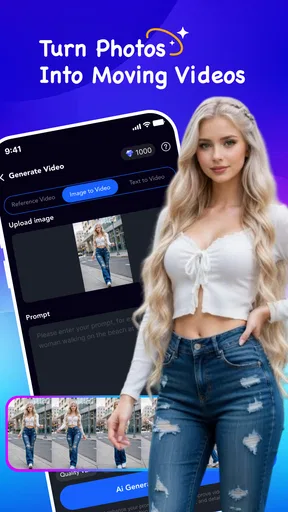
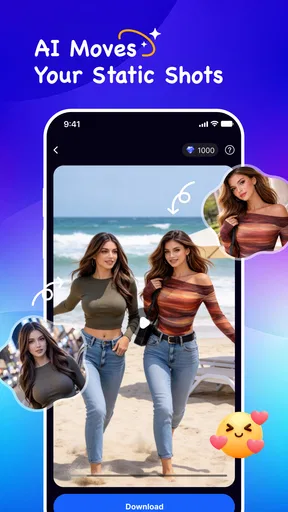
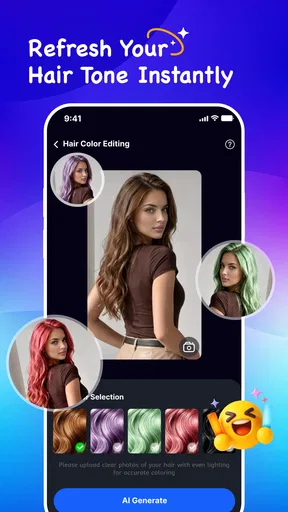
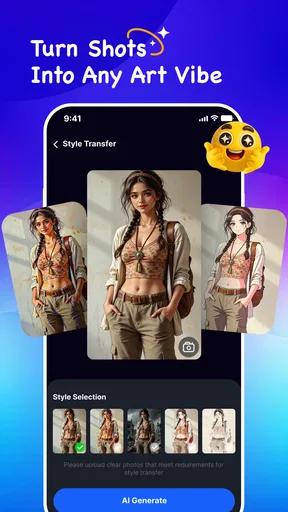
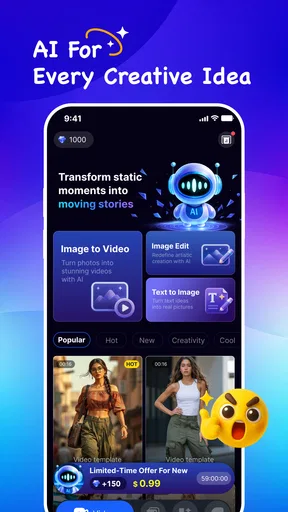
Our Review of Movify: AI Video Generator
 Analysis by Appyee
I approached Movify: AI Video Generator as someone who already had photos on a phone and wanted to turn them into something more expressive than a standard slideshow. That is the app’s most interesting promise: it sits between an image editor and a video-making tool, using AI to give still images movement, improve their appearance, and add creative treatment without asking me to learn a full desktop editor.
It is an Art & Design app from botiix, available free of charge, with optional in-app purchases ranging from $1.99 to $99.99 per item. The app is marked for Mature 17+ users, runs on Android 7.0 or later, and its current version is 1.0.1. Those details matter because this is not simply a drawing app or a conventional timeline editor. I see it as a quick creative workspace for people who begin with visual material and want a more polished, animated result.
From an ordinary photo to a shareable visual
The best way to understand Movify is to follow a realistic workflow. Imagine I have taken a portrait at home, saved a product photo for a small online post, or collected several travel pictures that feel flat when viewed one after another. My starting problem is not a lack of images; it is that the images do not yet have enough energy to hold attention as video.
In that situation, I would first choose the source image carefully rather than opening the app with a random gallery selection. A sharp subject with a clear separation from the background gives an AI effect more useful visual information to work with. A crowded photo, a face partly hidden by another object, or a very dark image may still be worth trying, but the result is more likely to need correction or a second attempt.
This is one of the practical differences between Movify and a traditional slideshow maker. A slideshow mainly asks me to arrange photographs, set timing, and add transitions. Movify is more appealing when the original image itself needs help before it becomes the basis for motion. The enhancement stage can be just as important as the animation stage, especially when the source came from an old screenshot, a compressed messaging app, or a dim indoor shot.
Choosing the right starting material
I would keep the first project deliberately simple: one strong image, a clear subject, and a specific goal. For a social post, that goal might be a subtle sense of movement. For a personal memory, it might be a more stylized transformation. Starting with a single image makes it easier to judge whether the visual treatment is actually helping instead of hiding a weak source under effects.
A useful trick is to prepare two versions of the same picture before processing it. One can be the untouched original, while the other has been cropped to remove distracting edges. Comparing the two helps reveal whether the AI is improving the subject or merely making the whole frame busier. This small preparation step is more valuable than repeatedly switching effects without knowing what changed.
I would also avoid treating enhancement as an automatic repair for every flaw. If a photo has an important detail that is already distorted, increasing its apparent polish may make the distortion more noticeable. For portraits, I would inspect eyes, hair, hands, and jewelry after each result. For product images, I would check logos, labels, and straight edges. The more literal the image needs to remain, the more conservative I would be with creative processing.
Moving through the creation process
Once the image is selected, the natural flow is to experiment with enhancement and then move toward video generation or a creative effect. I found that this order makes sense because the quality of the input influences every later step. If the picture is too soft or poorly framed, changing the motion style will not solve the underlying problem.
The app’s appeal is that these tasks belong in one compact creative process. Instead of moving from a gallery to a separate enhancement app, then into a video editor, I can keep the concept together. That reduces the mental handoff between tools. I am not constantly asking whether one app exported the right format for the next one; I am focusing on how the image should feel when it moves.
That convenience comes with a trade-off. A specialized editor usually exposes more precise controls, while an AI-focused app tends to make the first result faster and the detailed correction less central. Movify is therefore strongest when I want a visually interesting draft or a finished short piece without building every movement by hand. It is less convincing as a replacement for a full editor when timing, layers, audio alignment, or frame-level control are the heart of the project.
My main workflow advice is to judge the image before judging the effect. I would make one change at a time, save the version that works, and only then try a more dramatic treatment. This prevents the common mistake of choosing the most eye-catching preview and discovering later that the subject has become difficult to recognize.
Where the handoffs become important
The first handoff is from the phone gallery to the app. It sounds minor, but it shapes the whole experience. If I am working on a quick post, I want to identify the correct image immediately and avoid preparing a large batch before I know whether the style suits it. For a personal project, I might test a representative image first, then decide whether the rest of the collection deserves the same treatment.
The second handoff is from enhancement to motion. This is where I would compare the processed image with the original, not just trust the preview. A cleaner-looking face may be useful for a casual social clip, but unacceptable for a family archive. A stronger creative effect may be perfect for an invitation or mood board, yet wrong for a product demonstration where accuracy matters more than atmosphere.
The third handoff is from generated result to final use. A video that looks attractive inside the creation screen still needs to work in the place where I plan to show it. I would check the composition on a small phone display, because details that seem clear in an editing view can disappear when the final clip is watched quickly. I would also keep the original image until I am satisfied, since the animated result should be treated as a new interpretation rather than the only copy of the source.
These handoffs explain why I would not call the app entirely automatic. AI can shorten the distance between an idea and a visual result, but I still need to make editorial decisions. The app can help me produce movement; it cannot decide whether that movement communicates the right message for a birthday greeting, a shop listing, or a personal memory.
Everyday uses that make sense
A realistic use case is a small business owner preparing a product announcement from one carefully photographed item. Instead of posting the still image alone, I could enhance it, add a restrained visual effect, and use the result as a short attention-grabbing clip. The important limitation is that I would keep the product’s shape and labeling under close review. For a creative teaser, this workflow is useful; for a precise catalog image, I would keep the original untouched version as the authoritative reference.
Another use is a family photo that feels too static for a digital invitation. A gentle animated treatment could give the image more presence without requiring a full video shoot. Here I would favor subtlety. The purpose is to make the invitation feel alive, not to turn a meaningful photograph into an unrecognizable special effect.
Movify also suits mood boards and concept work. I can begin with a still reference, improve its visual quality, and explore how it might behave as motion before committing to a larger production. This is a valuable early-stage workflow because it lets me test an idea quickly. It is not the same as creating a finished commercial sequence, but it can help me decide whether a visual direction is worth pursuing.
For social content, the app may be most useful when I have a strong image but no time or skill for manual animation. The result can feel more personal than a plain transition while requiring less effort than keyframing objects in a conventional editor. I would still review the entire clip before sharing it, particularly if the source contains a face or text that must remain stable.
What the result feels like in practice
The strongest outcome is speed with a sense of experimentation. I can begin with a familiar photograph and end with something that feels newly designed. Enhancement can rescue an image that is merely acceptable, while creative effects can give it a purpose beyond simple documentation. That combination makes the app more distinctive than a basic photo-to-video converter.
However, “more animated” is not automatically “better.” AI effects can attract attention, but attention can turn into distraction when motion competes with the subject. I would use the least intense treatment that achieves the desired mood. If the viewer notices the effect before noticing the person, object, or message, the workflow has probably gone too far.
The app is also better suited to short, focused outcomes than to complex storytelling. If I need several scenes with carefully controlled pacing, dialogue, music cues, captions, and precise transitions, a dedicated video editor is the more sensible choice. Movify’s value is in transforming visual material quickly, not in replacing every stage of production.
For beginners, that focus is a benefit. There is less temptation to spend an hour adjusting technical details before seeing anything. For experienced creators, it can feel restrictive if the desired result depends on exact control. I would recommend it as a companion for ideation and quick finishing rather than as the only tool in a serious production workflow.
Questions I would consider before installing
The first question is whether the app is genuinely free to use. It can be installed without an upfront purchase, but optional in-app purchases are part of the experience, with individual items priced from $1.99 to $99.99. I would therefore begin with a small test project and check which parts of my intended workflow are available before investing time in a larger batch of images. That is especially important if I need repeated processing rather than a one-off experiment.
The second question is compatibility. The minimum requirement is Android 7.0, so many older devices may be able to run it, but the practical experience of AI image and video work can still depend heavily on the phone itself. I would keep enough storage available for source images and generated results, and I would avoid starting a large creative session when the device is already struggling with other demanding tasks.
The third question is whether the Mature 17+ age rating fits the person who will use it. Parents choosing creative software for younger users should take that label seriously instead of assuming that an Art & Design category automatically makes an app suitable for every age group. For adult users, the rating is simply part of deciding whether it belongs on a shared family device.
The fourth question is whether I need exact preservation of the original image. If the answer is yes, I would use Movify cautiously and compare every result against the source. The app makes sense for creative reinterpretation, but a professional archive, technical diagram, or product record may be better handled by a conventional enhancement tool that emphasizes fidelity over transformation.
The final question is whether I want convenience or control. Movify wins when I want to move from a photo to an expressive visual with minimal setup. A timeline editor wins when I need to dictate every beat. A standard photo editor wins when the goal is careful retouching without animation. Knowing that distinction prevents disappointment and helps me use the app for the work it is actually good at.
Where the workflow breaks down
The flow can break at the source stage when the image is too ambiguous. AI processing cannot reliably infer every hidden edge, facial detail, or object boundary. Rather than blaming the effect, I would try a better-cropped image with a clearer subject. If the same problem appears repeatedly, that is a sign to switch tools or simplify the concept.
It can also break during the handoff from enhancement to motion. A polished still may not animate naturally, and a dramatic effect may introduce visual changes that are unsuitable for the subject. This is why I would not process an entire album in one pass. Testing one image first is a concrete way to avoid spending time and any applicable purchase budget on a style that does not hold up.
Another weak point is the gap between a pleasing preview and a useful final result. A clip can look impressive for a moment but communicate very little once shared. I would ask whether the viewer can still identify the subject, read any important text, and understand the intended mood without explanation. If not, a simpler treatment is probably the better result.
There is also a practical cost to relying on a single app for the whole journey. When I need sound design, detailed captions, exact timing, or a sequence built from many independent elements, I would hand the result to a more traditional video editor. Movify can provide the visual starting point, but it should not be forced to handle jobs outside its natural scope.
My recommendation after following the full process
I would recommend Movify to adults who regularly have good photos but want a faster route to animated, enhanced, or stylized content. It is particularly appealing for social posts, invitations, visual experiments, small promotional ideas, and early concept work. The developer, botiix, has positioned it in a useful space between photo enhancement and video creation, and the free entry point makes it reasonable to test with a single image.
I would skip it if my priority is pixel-perfect retouching, detailed timeline production, or guaranteed control over every visual change. In those cases, a dedicated photo editor or full video editor is a better fit. I would also be cautious with important portraits, product documentation, and archival material, where preserving the original matters more than adding movement.
My overall view is that the app succeeds when I treat it as a creative accelerator rather than a magic replacement for judgment. Start with a clean image, test one result, compare it with the source, and keep the effect subordinate to the subject. Used that way, Movify: AI Video Generator offers a practical path from a static phone photo to a more engaging visual, while still leaving me responsible for the final decision.
With its current version, 1.0.1, the experience feels best suited to experimentation and quick outcomes rather than an elaborate production pipeline. That is not a weakness for the right audience. If I want to turn an ordinary image into a compact creative piece without learning a complicated editor, I would give it a try. If I need precision first and novelty second, I would choose a more specialized alternative.
Verdict
Strengths of Movify: AI Video Generator
- Creates polished videos from simple text prompts.
- Useful templates speed up content creation for social media.
- AI automation reduces the need for editing experience.
- Supports quick experimentation with different visual concepts.
- Convenient for creating short promotional or creative clips.
Limitations of Movify: AI Video Generator
- AI results may not always match the prompt accurately.
- Advanced features may require a paid subscription.
- Video generation can consume significant time and device data.
- Export options may be limited on the free plan.
- Some outputs may look repetitive or lack a personal touch.
Similar Picks in This Category
View All
Canva: AI Photo & Video Editor
Canva4.8

PENUP – Drawing-sharing SNS
Samsung Electronics Co., Ltd.4.5

Crafto
Kutumb App4.6

Sketchbook
Sketchbook4.1

ibis Paint X
ibis inc.4.5

Adobe Express: AI Photo, Video
Adobe4.6
Frequently Asked Questions
What is Movify: AI Video Generator used for?
Movify: AI Video Generator is designed to help users create short videos from written prompts, images, or other supplied media. It can be useful for social media posts, promotional clips, visual storytelling, and creative experiments. Instead of editing every scene manually, you describe an idea and let the app generate or animate content, which can make the initial production process faster and more accessible.
Does Movify create videos entirely from text or images?
The app may support different creation methods depending on the version, device, and available features, including text-based prompts and image-to-video animation. Results can vary considerably according to the quality of the prompt, the source image, and the selected style. Users should expect to refine their instructions and regenerate clips occasionally, since artificial intelligence does not always interpret details, movement, faces, or text exactly as intended.
Is Movify: AI Video Generator free to download and use?
Movify may be available to download without an upfront charge, but some generation tools, premium styles, export options, or higher usage limits can require in-app purchases or a subscription. Before starting a project, check the current pricing, trial conditions, renewal terms, and credit system shown in the app store or inside the application. Availability of free generations can also change over time.
Does Movify require an internet connection?
AI video generation normally depends on remote processing, so Movify is likely to require an active internet connection for creating, rendering, or downloading videos. A stable Wi-Fi or mobile data connection is recommended, especially for longer clips or high-resolution exports. Some previously saved projects may remain accessible offline, but the main generation features should not be expected to work fully without connecting to the service.
Are videos created with Movify ready to share on social media?
Movify can be useful for producing short, shareable content, but users should review every generated video before publishing it. Check for visual errors, unnatural motion, incorrect objects, unwanted artifacts, watermarks, and audio or copyright concerns. Export quality, aspect ratios, duration limits, and watermark removal may depend on the selected plan. Always confirm that you have permission to use uploaded images, music, and recognizable people.
